You click the power button. The screen lights up. For a split second, you see scrolling text about memory counts and drive models. It’s easy to ignore. It’s also the most critical handshake in your computer’s daily routine.
That text is the Basic Input/Output System (BIOS). Or, on newer machines, UEFI firmware speaking its native language. Either way, the job is the same. It wakes the hardware up. It makes sure the components talk to each other. And it hands the keys over to the operating system.
This process is called POST. Power-On Self-Test. It happens before Windows, macOS, or Linux even loads.
The Video Card Check
The BIOS doesn’t just guess that your screen works. It verifies it.
Most modern graphics cards carry their own mini-BIOS. This firmware initializes the GPU memory and the processor on the card itself. The motherboard BIOS looks for this. It needs to know the display is ready.
If the video card doesn’t have its own initialization code, the BIOS looks at the motherboard. It checks for ROM chips on the board that hold generic video driver information. It loads that. It gets you to a basic display state.
No display? No POST. You’re stuck in the dark.
Cold Boot vs. Reboot
Here is where the logic gets interesting. The BIOS needs to know if you just plugged the computer in or if you just restarted it.
It checks a specific memory address: 0000:0472.
If that location holds the value 1234h, the BIOS knows it’s a reboot. A warm restart. It skips the heavy lifting. It skips the full diagnostic run. It assumes the hardware didn’t change. It just picks up where it left off.
If the value is anything else? It’s a cold boot. The system has been completely powered down. The hardware has lost power. The BIOS has to start from scratch.
The Full Cold Boot Diagnostic
A cold boot is serious. The BIOS runs a battery of tests.
It writes to every single RAM address. It reads it back. It verifies the data integrity. If memory is corrupted, the computer will be unstable. The BIOS finds out immediately.
It checks the PS/2 ports. It checks the USB ports. It looks for a keyboard. It looks for a mouse. Without input devices, the system can’t report errors. It can’t accept commands.
It scans for the Peripheral Component Interconnect (PCI) bus. If it finds one, it checks every PCI card attached to it. Graphics cards. Network adapters. Sound cards. If a card is loose or failed, the BIOS detects it.
Failures here are rarely software issues. They are hardware problems. A loose stick of RAM. A dying hard drive. A failed graphics card.
The BIOS tells you. Through a series of beeps. Or a text message on the screen. You’ve likely heard the beep codes. They are Morse code for hardware failure.
The System Inventory
Once the hardware checks pass, the BIOS shows you the summary.
You see the processor model. The amount of installed memory. The status of the floppy drive (yes, they still exist in the firmware logic). The hard drive capacity. The BIOS revision date. The display status.
It loads special drivers for specific hardware. SCSI adapters, for example. These are common in older servers or specialized workstations. The BIOS pulls the driver information directly from the adapter’s ROM. It displays the details.
This is the BIOS answering the question: “What do we have to work with?”
The Bootstrap Sequence
Now comes the real job. Booting the operating system.
“Boot” is short for “bootstrap.” The phrase “lift yourself up by your bootstraps” comes from this exact process. The system pulls itself up by grabbing the OS from a storage device.
The BIOS checks the CMOS Setup. This is the configuration menu you enter by pressing F2 or Del during startup. It looks at the boot order.
The first device in the list is the priority.
The BIOS tries to boot from it. If the device is empty? It moves to the next one. Hard drive. USB stick. Network boot.
If it finds a device, it looks for the specific system files. The bootloader. The kernel. The drivers needed to start the OS.
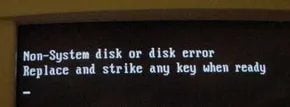
If those files are missing, the process halts.
You’ve probably seen this error. It happens when you