Pushing your CPU beyond its factory settings—known as overclocking—can deliver significant performance gains without the need for expensive hardware upgrades. While once a niche practice, modern processors and motherboards increasingly incorporate tools and features that make overclocking accessible, even for beginners. This guide breaks down the process, from understanding the fundamentals to troubleshooting common issues.
Understanding the Basics
CPUs operate at a default clock speed, with some models featuring a boost clock for temporary performance spikes. Overclocking involves permanently increasing these speeds, allowing the processor to execute more operations per second. Three primary factors dictate your CPU’s speed:
- Base Clock (BCLK): The fundamental frequency, typically set at 100MHz.
- Multiplier: A value multiplied by the BCLK to determine the final CPU frequency (e.g., a 33x multiplier on a 100MHz BCLK results in a 3.3GHz clock speed).
- Core Voltage (Vcore): The electrical power supplied to the CPU cores; increasing this can enable higher clock speeds but generates more heat.
By adjusting these settings, you can improve performance in gaming, multitasking, and other CPU-intensive applications. The potential gains range from 5% to 20% or more, depending on your hardware and cooling solution.
Is Your CPU Overclocking-Ready?
Not all processors support overclocking equally. Here’s a breakdown:
- Intel CPUs: Models ending in “K” or “X” (e.g., Core i9-13900K) are unlocked and designed for overclocking. Non-K/X Intel CPUs have locked multipliers, limiting their overclocking potential.
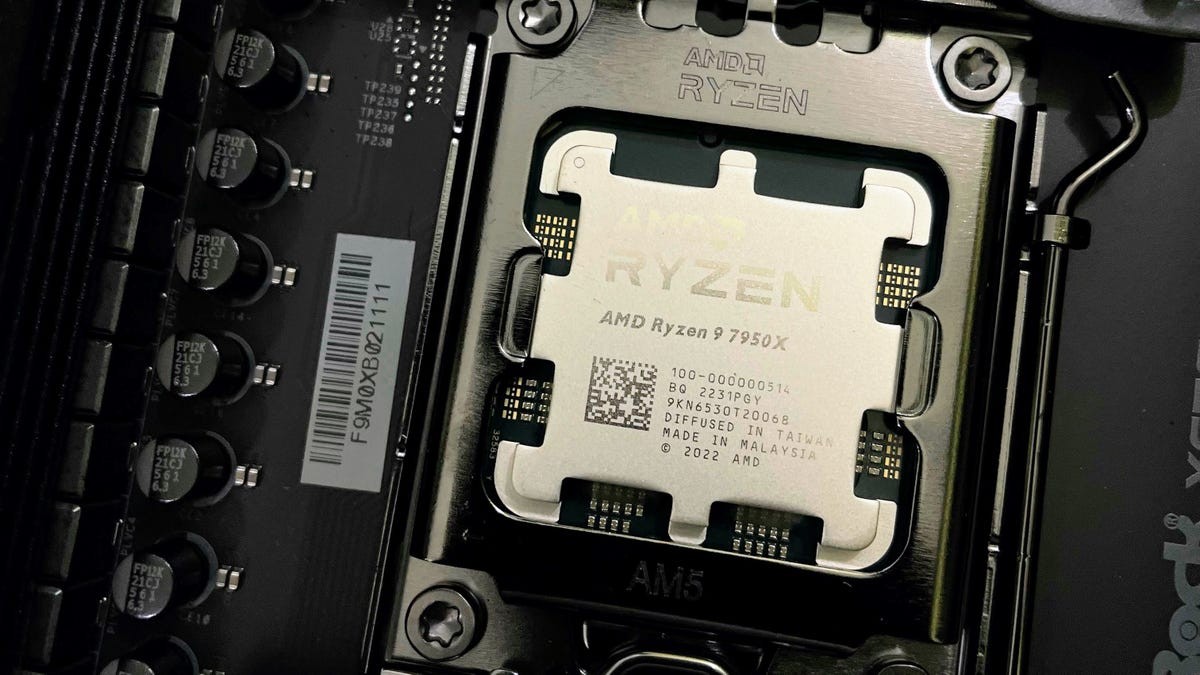
- AMD CPUs: All Ryzen desktop processors support overclocking, with “X” and “XT” variants offering more headroom.
Your motherboard must also support overclocking. Intel Z-series chipsets (e.g., Z790) and AMD B-series (e.g., B550) and X-series (e.g., X670) are compatible. To verify compatibility, use tools like CPU-Z or HWiNFO to confirm your CPU and motherboard models.
System Stability: Cooling and Power
Before overclocking, ensure your system can handle the increased thermal load. Use a CPU temperature monitor to check idle and stress-test temperatures (with tools like Prime95). A stable system must maintain safe operating temperatures under heavy load.
Additionally, verify that your power supply unit (PSU) has sufficient headroom to handle the increased power consumption. If the PSU is insufficient, it may trip and shut down the PC. An inadequate CPU cooler can quickly become a bottleneck; consider upgrading to an all-in-one (AIO) liquid cooler for optimal performance.
Overclocking in BIOS/UEFI
The primary method for overclocking involves adjusting settings in your motherboard’s BIOS/UEFI. The exact steps vary by manufacturer, so consult your motherboard manual.
- Enter the BIOS/UEFI by pressing the designated key during startup (usually Delete, F2, F10, or F12).
- Navigate to the overclocking or performance section (often labeled as “OC”).
- Increase the CPU multiplier by 1 (e.g., from 36 to 37) or the CPU frequency by 100MHz (e.g., from 4.5GHz to 4.6GHz).
- Save the changes and restart.
- Run a stress test for 5-15 minutes while monitoring temperatures. If stable, repeat the process; if unstable, revert to the previous setting or slightly increase the core voltage (+0.01V increments).
Software Tools for Overclocking
Intel and AMD provide official tools for overclocking without BIOS/UEFI adjustments:
- Intel XTU (Extreme Tuning Utility): Allows overclocking of compatible Intel CPUs directly from Windows.
- AMD Ryzen Master: Enables overclocking of Ryzen CPUs within the operating system.
These tools offer a user-friendly interface for adjusting clock speeds and voltage, with built-in monitoring features. Some motherboards also include proprietary software (e.g., MSI Dragon Center, Asus Armoury Crate) with similar functionality.
Laptop Overclocking
Overclocking laptops is more challenging due to limited cooling options. If supported, proceed cautiously, using small increments (50MHz) and monitoring temperatures aggressively. Consider undervolting —reducing voltage while maintaining clock speed—for better thermal performance. Always overclock while plugged in, not on battery power.
Troubleshooting
- System Fails to Boot: Reset CMOS by removing the motherboard battery (desktops) or using the Clear CMOS button (if available).
- Crashes During Testing: Reduce frequency, increase voltage (if temperatures allow), or verify cooling solution effectiveness.
- Temperature Issues: Check cooler mounting, fan operation, and case airflow.
Every CPU is unique (“silicon lottery”), so results vary. Prioritize stability over maximum speed. Start small, test thoroughly, and proceed cautiously.
CPU overclocking can deliver significant performance gains, but requires careful attention to system stability and thermal management. If you’re new to the process, start with modest adjustments and prioritize a stable overclock over maximum speed.