There is a specific kind of modern anxiety reserved for watching a battery percentage crawl upward while you are already running late. Whether your device is struggling under the weight of a new software update or simply showing its age, a sluggish charge can feel like being tethered to a wall outlet for half the day.
The good news? You don’t necessarily need new accessories to fix this. Often, slow charging is the result of using incompatible cables, ignoring background settings, or simply letting your phone work too hard while it tries to rest. By understanding how your iPhone manages power, you can reclaim your time and ensure your battery keeps up with your schedule.
Here are the most effective ways to speed up your iPhone’s charging process, ranging from simple habit changes to hardware adjustments.
1. Use a Proper Fast Charger
The single biggest factor in charging speed is the power adapter. Apple stopped including power bricks in the box years ago, providing only a cable, which means many users are still charging with outdated, low-power adapters.
To achieve true fast charging, you need:
* A 20-watt (or higher) USB-C power adapter.
* A compatible cable: USB-C to Lightning (for iPhone 14 and earlier) or USB-C to USB-C (for iPhone 15 and later).
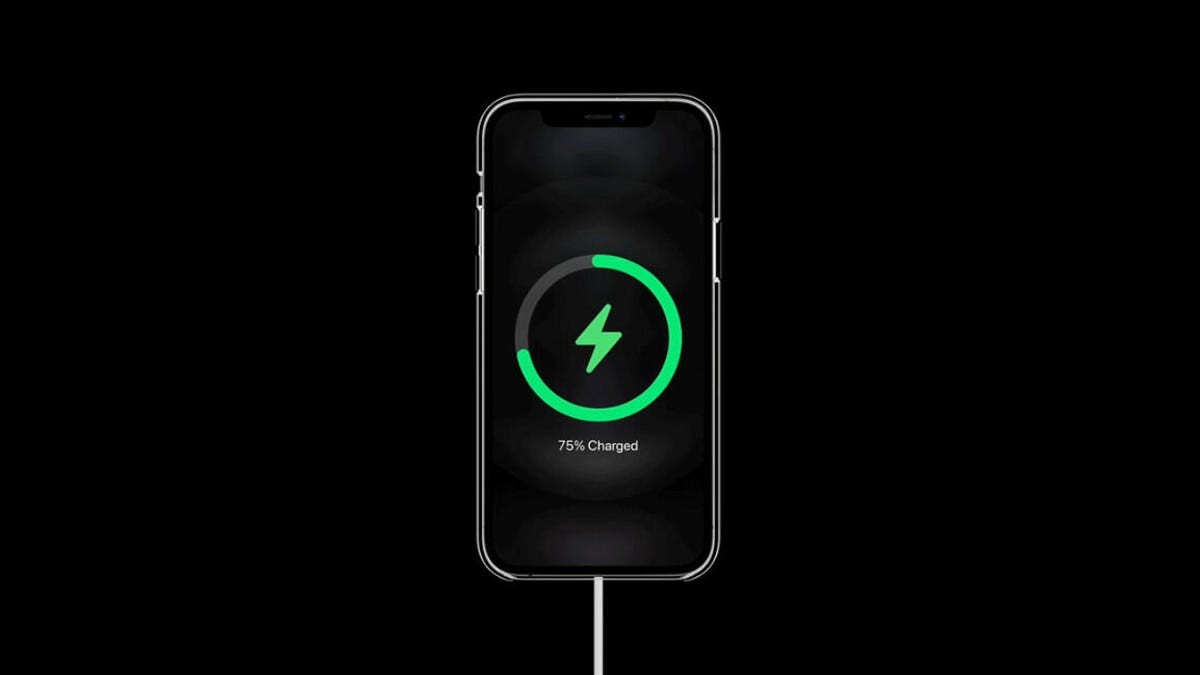
With this setup, iPhones from the iPhone 8 onward can charge from 0% to roughly 50% in about 30 minutes. Even a quick 10-minute top-up can provide significant battery life.
Note for iOS 26 users: Apple has introduced a “Slow Charger” notification on the lock screen if you plug in an underpowered brick or older cable, making it easier to identify the bottleneck.
2. Upgrade Your Wireless Charging
Wireless charging is convenient, but not all wireless chargers are created equal. If you want speed, you need to look beyond standard Qi chargers.
- MagSafe and Qi2 Chargers: These support up to 15 watts of power (on iPhone 12 and later). This allows your phone to reach roughly 30% battery in 30 minutes.
- Standard Qi Chargers: Older Qi1 chargers max out at 7.5 watts, which is barely faster than the original 5-watt Apple brick.
- Non-Certified Magnetic Chargers: Even if they have magnets, if they aren’t MagSafe-certified, they will likely default to the slower 7.5-watt speed.
3. Stop Using Your Computer to Charge
It is tempting to plug your phone into your laptop when you are working, but this is one of the slowest ways to charge. Computer USB ports—whether USB-A or USB-C—are designed for data transfer and low-power device support, not high-wattage battery replenishment.
Even a basic 5-watt wall adapter will outperform most laptop ports. Furthermore, older computers or faulty ports may deliver inconsistent power, further delaying the process. For speed, always use a wall outlet.
4. Let Your Phone Rest (Turn It Off)
The fastest way to charge a battery is to ensure it isn’t being drained simultaneously. If you are streaming video, playing games, or browsing social media while charging, you are fighting a losing battle.
- The Best Option: Turn the phone completely off. This stops all background processes and CPU usage.
- The Caveat: Plugging in an iPhone sometimes triggers it to turn back on. To avoid this, plug it in first, then power it down.
5. Use Airplane Mode as a Compromise
If you cannot turn off your phone because you need to receive calls or texts, Airplane Mode is the next best thing. It disables cellular, Wi-Fi, and Bluetooth radios, which are constant power drains.
This allows the battery to charge faster than normal usage while keeping the device accessible. You can quickly toggle Airplane Mode off to check urgent messages and then turn it back on to resume rapid charging.
6. Manage Temperature
Batteries are sensitive to heat. While a slight warmth during charging is normal, extreme temperatures can cause iOS to pause charging entirely to prevent battery damage.
- Check for Overheating: Go to Settings > Battery to see if your charging has been paused due to heat.
- Cool It Down: Move your phone and charger to a cooler, well-ventilated area. Avoid leaving your phone in direct sunlight or under pillows where heat can trap.
7. Optimize Settings for Charging
You can mimic “Low Power Mode” benefits manually to reduce the energy your phone consumes while it charges. These tweaks reduce the workload on the battery:
- Enable Low Power Mode: This restricts background app refresh, automatic downloads, and reduces visual effects.
- Switch to Dark Mode: On OLED screens (iPhone X and later), black pixels use less energy. While the savings are marginal, every percent counts.
- Lower Screen Brightness: The display is the most power-hungry component. If you must use the phone, keep the brightness as low as possible.
8. Disable “Optimized Battery Charging”
Apple’s Optimized Battery Charging feature is designed to prolong battery health by learning your routine and delaying charging past 80% until you need it. However, this can make your phone feel like it’s charging slowly, especially if you are plugging it in unexpectedly.
If you need a full charge quickly, temporarily disable this feature:
* Go to Settings > Battery > Battery Health & Charging.
* Toggle off Optimized Battery Charging.
9. Check Your Battery Health
Sometimes, the issue isn’t your charger—it’s your battery. Lithium-ion batteries degrade over time. If your battery health is significantly reduced, it will hold less charge and may charge slower than it did when new.
- Check Health: Go to Settings > Battery > Battery Health & Charging.
- Significant Degradation: If you see a message stating your battery health is significantly degraded, consider a replacement. Apple’s official battery service for iPhone 15 models starts at approximately $99, though prices vary by model and coverage.
The Bottom Line
Speeding up your iPhone’s charging time rarely requires buying new gear. By switching to a 20W+ wall adapter, avoiding computer ports, and reducing background activity through Airplane Mode or Low Power Mode, you can dramatically cut down the time you spend tethered to the wall. If these steps don’t help, it may be time to check your battery’s physical health.