


Modern smartphones are designed to be addictive. Endless scrolling, constant notifications, and dopamine-driven apps hijack our attention, leaving many feeling overwhelmed and anxious. A 2024 Pew Research study found that 72% of U.S. teens report feeling peaceful when disconnected from their phones, while nearly half (44%) experience anxiety when they can’t disconnect. The problem isn’t just with young people, though: it’s a widespread struggle.
For many, switching to a “dumb phone” – a basic device with limited functionality – seems like the only solution. But that’s impractical for those who rely on smartphones for banking, work, or essential communication. Instead, Apple’s iOS offers powerful built-in tools to reclaim control over your screen time, turning your iPhone into a focused device without sacrificing its core utility.
Here’s how to customize your iPhone to reduce distractions and increase productivity:
Streamline Your Home Screen & Disable Notifications
The first step is simple: remove distracting apps from your home screen. Out of sight, out of mind. Many people mindlessly tap icons they don’t even need, simply out of habit. Deleting apps entirely is even more effective, but if you prefer keeping them, burying them in the App Library makes a difference.
Beyond app placement, disable non-essential notifications. The constant stream of alerts triggers compulsive checking. Prioritize only the notifications you truly need – family contacts, critical work alerts, banking fraud warnings – and silence the rest.
Leverage iOS Focus Modes
Apple’s Focus modes are a game-changer. They allow you to create customized profiles that filter notifications based on activity. Instead of a generic “Do Not Disturb,” set up separate modes for work, travel, or downtime.
Here’s how to set it up:
- Go to Settings > Focus.
- Tap the + icon to create a new Custom Focus.
- Choose which People and Apps you want to allow notifications from.
- You can even create a custom Home Screen layout that appears only when the Focus mode is active, hiding distracting apps entirely.
This ensures you stay present in the moment without missing important communications.
Screen Time Limits & Scheduled Downtime
iOS’s Screen Time feature provides hard limits on app usage. You can set daily time allowances for specific apps (e.g., 45 minutes for Instagram) and receive notifications when you’re nearing the limit.
To configure Screen Time:
- Go to Settings > Screen Time > App Limits.
- Tap Add Limit and select the apps you want to restrict.
- Set the time allowance and customize the schedule as needed.
Beyond limits, schedule downtime to enforce device-free periods. This feature blocks all but essential apps (like phone calls) during specified times, such as weekends or evenings. The iPhone will send a 5-minute warning before downtime begins, allowing you to finish tasks or ignore it at your own risk.
Assistive Access: A Surprisingly Effective Solution
Apple’s Assistive Access feature, designed for users with cognitive disabilities, can also serve as a surprisingly powerful distraction-reduction tool. It simplifies the iPhone interface, displaying apps in a large, grid-like layout with clear icons and text labels.
To enable it:
- Go to Settings > Accessibility > Assistive Access.
- Follow the on-screen instructions to set up the simplified interface.
While extreme, this feature effectively “dumbs down” your iPhone, forcing you to engage with only the most essential functionalities. It’s not for everyone, but it demonstrates how far iOS can be customized to curb addiction.
Third-Party Apps: The Dumb Phone App
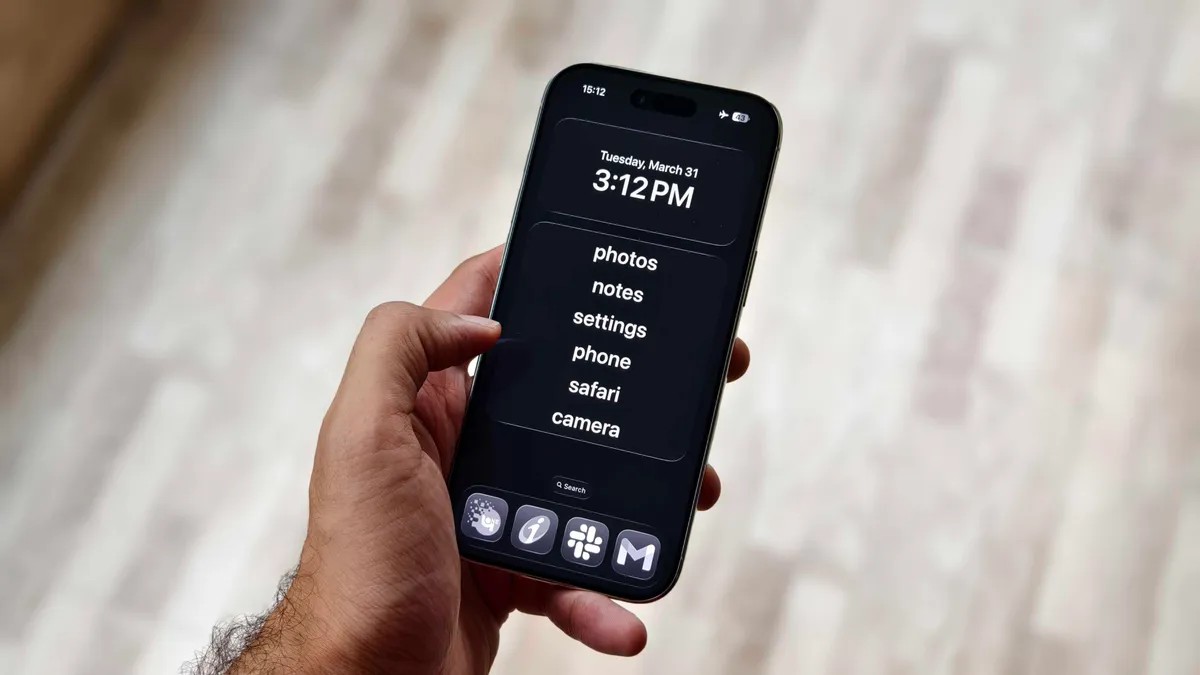
For a more polished experience, the “Dumb Phone” app ($3/month or $25 lifetime) transforms your iPhone into a minimalist text-based launcher. It hides all non-essential apps behind a simple menu, forcing you to consciously choose which tools to use.
The setup requires enabling specific settings: adding the app widget, setting a dark wallpaper, and reducing animations. While it costs extra, the app provides a more seamless and customizable distraction-free experience.
The Bottom Line
Reducing smartphone addiction isn’t about willpower; it’s about redesigning your digital environment. Apple’s iOS offers a suite of tools to turn your iPhone from a constant distraction into a focused productivity device. Whether you choose to customize built-in features or experiment with third-party apps, the key is to take control of your attention.
These adjustments won’t eliminate distraction entirely, but they will shift the balance, making it easier to stay present and productive in a world designed to pull you away.


