Many iPhone users don’t realize how much their device can adapt to their needs. iOS Accessibility Shortcuts allow you to quickly toggle useful features without digging through settings, making your phone more helpful in specific situations and less distracting in others. This isn’t just about convenience; it’s about taking control of your digital experience.
Solving Real Problems with Hidden Features
The article highlights how features like Vehicle Motion Cues can solve frustrating problems. For those prone to motion sickness while using their phone in a car, this setting animates on-screen elements to match vehicle movement, reducing nausea. The key? The feature is easily accessible via an Accessibility Shortcut – a triple-click of the side or home button.
This demonstrates a broader point: Apple has baked powerful tools into iOS that many users overlook. These aren’t just for users with disabilities; they’re for anyone who wants to tailor their phone to their lifestyle.
Setting Up Your Own Shortcuts
Setting up an Accessibility Shortcut is simple:
- Go to Settings > Accessibility > Accessibility Shortcut.
- Choose from a list of options:
- AssistiveTouch
- Background Sounds
- Color Filters (including grayscale)
- Live Captions
- Vehicle Motion Cues
- Voice Control
- and more.
You can select a single shortcut or multiple. If you choose several, a pop-up menu will appear after the triple-click, letting you pick which one to activate.
Beyond Motion Sickness: Grayscale for Digital Detox
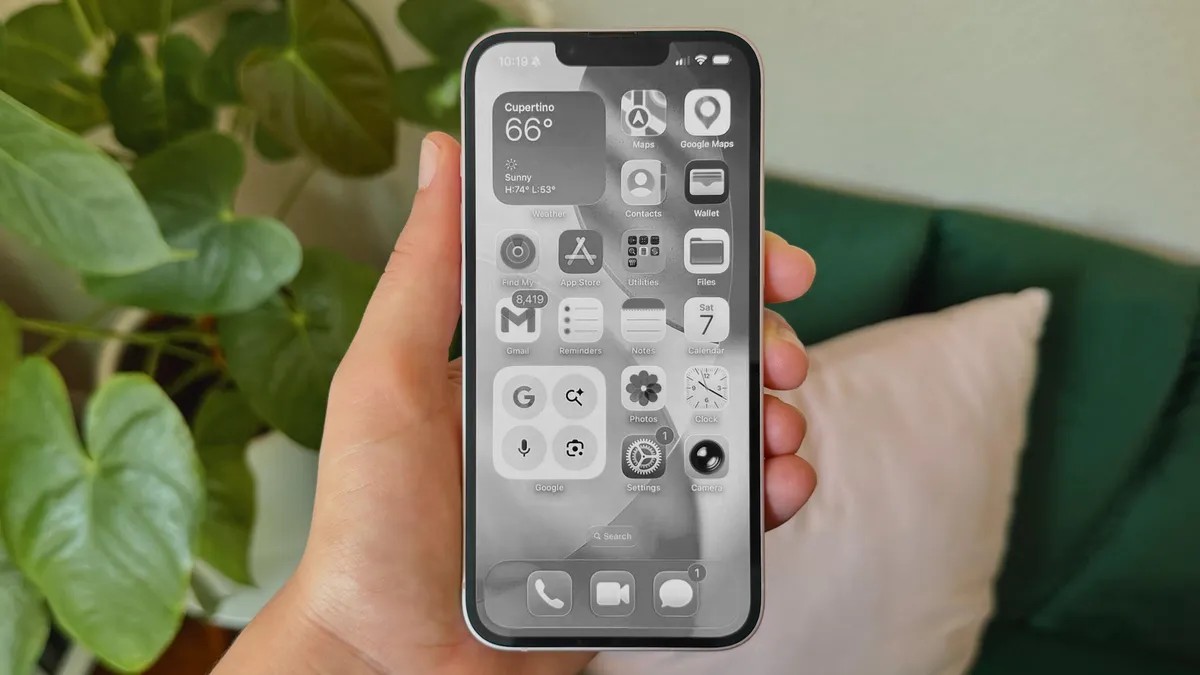
Another practical example is using Color Filters to switch your screen to grayscale. This can be surprisingly effective for curbing mindless scrolling. By removing the visual appeal of colorful apps like TikTok or Instagram, you make it less stimulating to stay glued to your feed.
This is a clever way to use technology against itself, turning a potential distraction into a tool for focus.
Why This Matters
The power of these shortcuts lies in their immediacy. Instead of hunting through menus, you have instant access to features that can improve your experience. The article’s author correctly points out that this isn’t about making your phone “easier” in the conventional sense; it’s about making it smarter – adapting to your needs instead of forcing you to adapt to its limitations.
By leveraging these tools, you can make your iPhone a more purposeful device, rather than just another source of distraction.